
ChatGPT Agent Mode
ChatGPT Operator mode was deprecated in July 2025 and merged into ChatGPT as Agent Mode — this guide explains what changed, which five marketing tasks deliver the highest ROI per message, and how to manage the 40-message monthly limit without burning through your allocation in the first week.
Key Integrations
Marketing Categories
⚠ Notable Limitations
40 messages/month on Plus and Business/Enterprise; CAPTCHA causes 0% task success; MFA-protected platforms require manual takeover mode and may still fail; not available in EEA or Switzerland as of mid-2026; Enterprise workspaces default to Agent Mode OFF; not a replacement for dedicated SEO tools, CRMs, or marketing automation platforms
What Happened to ChatGPT Operator Mode
If you searched for "ChatGPT Operator mode" expecting to find a standalone product, here is the short answer: it no longer exists as a separate tool. Operator launched on January 23, 2025 as a research preview available only to Pro subscribers at a dedicated URL (operator.chatgpt.com). On July 17, 2025, OpenAI deprecated it entirely and merged its browser-execution capability into ChatGPT itself — now called Agent Mode. The standalone Operator site is no longer accessible.
The transition was not just a rebrand. Agent Mode merged three previously separate capabilities: Operator's browser-interaction skills, Deep Research's information synthesis, and ChatGPT's conversational intelligence — all running on a virtual computer. The result is a more capable tool than Operator was at launch, but it carries the same fundamental constraints that defined Operator from day one: hard limits on CAPTCHA, multi-factor authentication, and monthly message quotas.
This article covers the current Agent Mode product. Everything described here applies to the integrated experience you access from the composer dropdown inside ChatGPT — not a separate URL, not a separate login.
What Agent Mode Can and Cannot Do
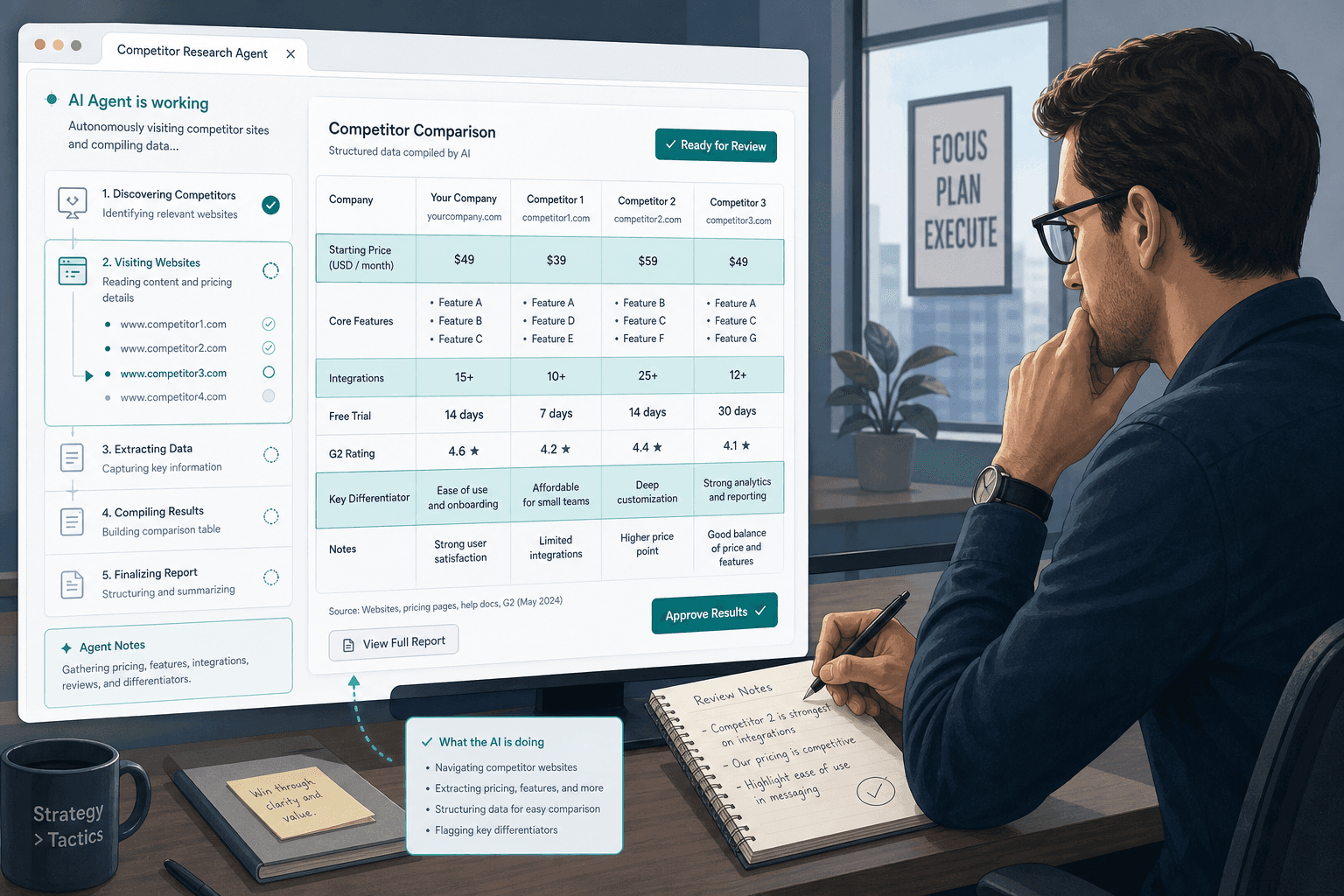
Agent Mode gives ChatGPT a virtual computer environment with a set of tools it can operate autonomously. Before you write a single prompt, it helps to understand exactly what is in that environment and where the hard stops are.
| Capability | What it means in practice |
|---|---|
| Visual browser | Navigates websites by seeing and interacting with page elements — clicks, scrolls, fills forms |
| Text-based browser | Reads large volumes of text efficiently for synthesis tasks without full GUI rendering |
| Terminal access | Runs code, manipulates files, processes data locally within the virtual environment |
| Code interpreter | Writes and executes Python for data analysis, spreadsheet generation, and file formatting |
| Gmail connector | Reads and drafts emails when permission is granted |
| Google Calendar connector | Reads calendar events and meeting context |
| Google Drive connector | Reads, creates, and saves documents and spreadsheets to Drive |
| File download | Saves outputs (CSV, XLSX, PPTX) for direct use outside the session |
Tasks typically take between 5 and 30 minutes to complete. This is not an instant tool — it is an autonomous one. Plan accordingly: initiate a task, do other work, and return to review the output.
| Scenario | Agent Mode behavior |
|---|---|
| Public website with no login | Full autonomous operation — highest reliability |
| Login required, no MFA/CAPTCHA | Agent attempts login; moderate reliability depending on site design |
| MFA or CAPTCHA required | Agent pauses and prompts takeover mode; task may still fail after authentication |
| CAPTCHA-only gate | 0% success rate — task fails immediately |
| Google Ads / Meta Ads Manager | Requires takeover mode; complex tasks have documented failure rates |
| GA4 / Google Search Console | Accessible via connector or browser; more reliable than ad platforms |
One data note worth flagging: Business and Enterprise plan users are subject to the same 40-message-per-user monthly limit as Plus users. This is a team planning issue, not just an individual one. Business and Enterprise data is not used for model training by default; Plus and Pro users are subject to OpenAI's privacy policy unless they opt out.
The 5 Marketing Tasks That Justify an Agent Mode Message
With 40 messages per month on Plus, every agent invocation is a decision. The five tasks below are ordered by ROI per message — specifically, the ratio of manual time saved to message cost, adjusted for task reliability. Each includes a copy-ready prompt template and honest notes on where the task tends to break down.
1. Competitive Intelligence Monitoring
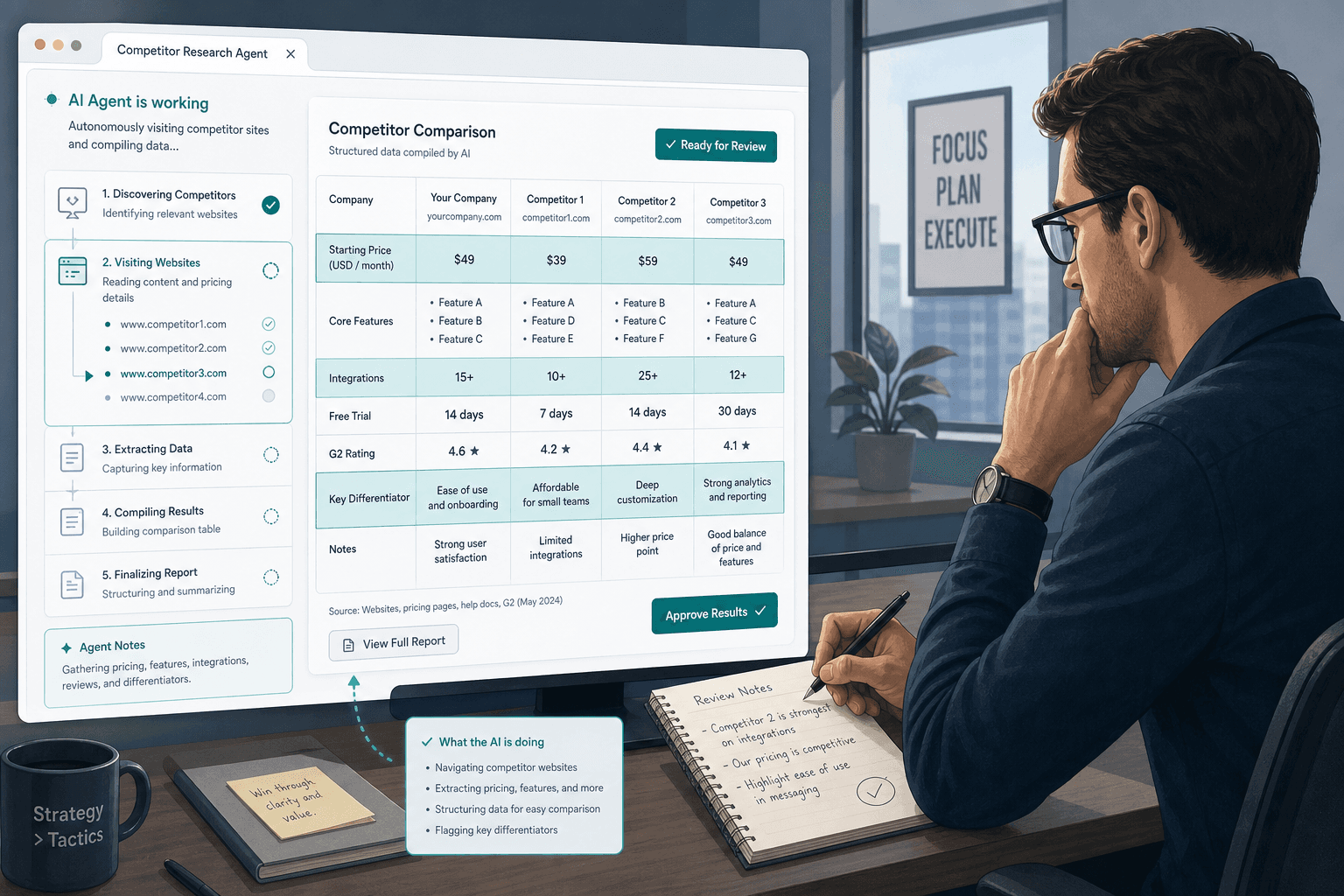
This is the highest-ROI use case on the list. The agent visits 5–10 competitor websites, extracts pricing tiers, positioning language, feature lists, and recent changes, and compiles everything into a structured comparison table. According to analysis cited by Dataslayer across 50+ implementations, this workflow achieved 94% data accuracy and 87% change detection precision, averaging 3.5 minutes per competitor — replacing roughly 8 hours of manual weekly research. These figures come from early-adopter case studies and should be treated as directional, not guaranteed.
Estimated message cost: approximately 4 messages per month if run weekly with batching.
Visit the following competitor websites and extract their current pricing tiers, core feature claims on the homepage, and any positioning language that differentiates them from alternatives. Compile everything into a single comparison table with columns: Competitor | Plan Names | Price Points | Key Feature Claims | Positioning Angle | Last Updated.

Competitors to check:
1. [Competitor A URL]
2. [Competitor B URL]
3. [Competitor C URL]

If a pricing page requires login or shows a CAPTCHA, skip that competitor and note it in the table. Do not guess at pricing — only include what is publicly visible on the page.2. SEO Content Gap Audits and Brief Generation
The agent visits the top 10 ranking pages for a target query, extracts heading structures, FAQ sections, People Also Ask questions, and topic coverage, then identifies gaps your existing content is missing. It can also track which SERP features (featured snippets, PAA boxes) the top results are triggering — including the formatting patterns that appear to earn those features.
The output is a writer brief you can hand directly to a content creator or use as your own writing scaffold. This task replaces 2–3 hours of manual SERP analysis per article, and the agent handles the structural extraction more consistently than most marketers do manually.
Search Google for "[target keyword]" and visit the top 10 organic results (skip ads and featured snippets). For each page:
- Extract the H1, H2, and H3 heading structure
- Note any FAQ sections or People Also Ask content visible on the page
- Identify the estimated word count range
- Note whether the page holds a featured snippet or PAA box

After reviewing all 10 pages, produce:
1. A topic coverage map showing which subtopics appear in 7+ of the top 10 results (must-cover)
2. A gap list of subtopics appearing in 3 or fewer results (differentiation opportunity)
3. A recommended H2 structure for a new article targeting this keyword
4. Formatting notes: what heading patterns appear to correlate with featured snippet wins3. Multi-Platform Campaign Performance Dashboard Creation
The agent can pull data from Google Analytics 4 and Google Search Console via connector access, aggregate it, and generate a formatted spreadsheet or slide deck summarizing campaign performance. For teams that currently spend 4–6 hours manually pulling and formatting weekly or monthly reports, this is a meaningful time recovery.
The critical caveat: Google Ads and Meta Ads Manager are MFA-protected platforms. Accessing them requires takeover mode, and even with manual authentication, complex data extraction tasks on these platforms have documented failure and restart rates. Plan for the possibility that the agent will complete the GA4 and Search Console portions cleanly but stall on paid platform data.
Connect to my Google Analytics 4 account and Google Search Console. Pull the following data for the date range [start date] to [end date]:

From GA4:
- Sessions by channel (organic, paid, email, direct, referral)
- Goal completions or conversions by channel
- Top 10 landing pages by sessions and conversion rate

From Search Console:
- Total impressions, clicks, and average position
- Top 10 queries by clicks
- Pages with the largest position improvement vs. prior period

Compile everything into a Google Sheets document with one summary tab and one raw data tab. Label each metric clearly. If a data source requires authentication, pause and prompt me to take over.4. B2B Lead and Prospect Research Enrichment
Give the agent a CSV of leads and it will research each company from public sources — LinkedIn company pages, Crunchbase, company websites, news coverage — and return an enriched CSV with tech stack signals, headcount estimates, funding stage, and recent news relevant to your pitch.
One documented B2B case cited in practitioner accounts found that this type of enrichment workflow cut campaign preparation time by 85% and improved outreach response rates from 12% to 31%. This is a single implementation result — not a benchmark — and should be treated accordingly. The underlying mechanism is straightforward: better-researched outreach performs better, and the agent makes deep research economically viable at scale.
I'm uploading a CSV file containing company names and domains for [number] B2B leads. For each company, search publicly available sources (company website, LinkedIn company page, Crunchbase, recent news) and add the following columns to the spreadsheet:

- Estimated headcount range (e.g., 50–200)
- Funding stage (bootstrapped, seed, Series A/B/C, public, unknown)
- Primary tech stack signals visible from job postings or website (e.g., Salesforce, HubSpot, AWS)
- Recent news or trigger events in the last 90 days (funding, product launch, leadership change, expansion)
- Relevance note: one sentence on why this company might be a fit for [your product/service context]

If a company's data is not publicly available, mark the cell as 'Not found' rather than guessing. Return the enriched CSV.5. Content Performance Audits and Repurposing
The agent can cross-reference GA4 traffic data with Search Console performance data to identify which pieces of content are driving organic sessions but not converting, which are converting well and could be expanded, and which have dropped in rankings and need attention. This replaces the kind of quarterly content audit that typically takes a full day to run manually.
The same task can extend into content repurposing: provide a blog post URL and the agent will generate a LinkedIn post variant, an X thread, a short-form video script outline, a downloadable checklist structure, and a presentation deck outline — all in a single invocation. This is one of the more reliable Agent Mode tasks because it does not depend on authenticated platform access.
Connect to Google Analytics 4 and Google Search Console. Identify my top 20 pages by organic sessions in the last 90 days. For each page, pull:
- Organic sessions
- Average position in Search Console
- Conversion rate (goal completions / sessions)
- Position change vs. prior 90-day period

Then categorize each page into one of four buckets:
1. High traffic, high conversion — protect and expand
2. High traffic, low conversion — CRO opportunity
3. High position, declining traffic — potential algorithm or freshness issue
4. Low position, high conversion intent — optimization opportunity

Return a prioritized action list with one recommended next step per page in the top 10 of each bucket.
Message Budget Strategy: The 80/20 Rule and Batching
The most common mistake with Agent Mode is treating it as a general-purpose upgrade to standard ChatGPT. It is not. It is a specialized tool for a narrow category of tasks, and using it for anything outside that category is a waste of a scarce resource.
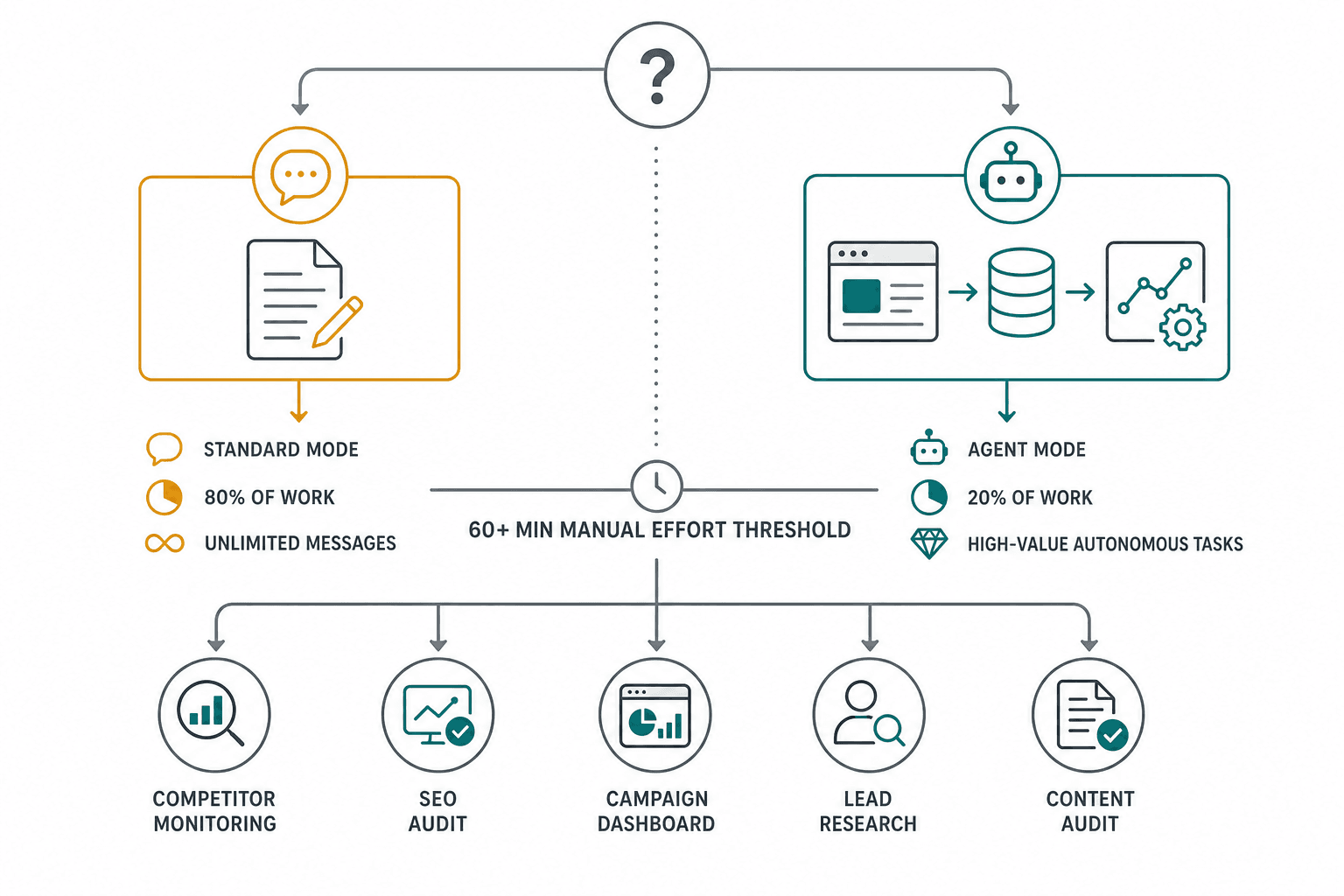
According to analysis of 5,000+ agent sessions cited by Dataslayer, 73% of Plus users exhaust their 40-message allocation within the first week. The pattern is consistent: users discover the capability, run experiments across multiple use cases, and burn through their budget before identifying which tasks actually deliver value.
The rule that prevents this: use standard ChatGPT for everything iterative, conversational, or single-source (80% of your marketing work). Reserve Agent Mode exclusively for tasks that require autonomous multi-step execution across multiple sources or platforms — tasks that would take 60 or more minutes to do manually (the remaining 20%).
Prompt Batching: One Message, Multiple Targets
Batching is the single most impactful tactic for Plus users. Instead of checking three competitors in three separate prompts (3 messages), write one prompt that covers all three simultaneously (1 message). The agent handles parallel research within a single invocation.
Apply the same logic to every task: instead of running a content audit on five URLs separately, pass all five in one prompt. Instead of generating repurposed content formats one at a time, request all formats in a single invocation. The agent's output quality does not meaningfully degrade with reasonable batching, but your message cost drops proportionally.
Monthly Message Allocation Framework for Plus Users
| Task category | Frequency | Messages/month | Notes |
|---|---|---|---|
| Competitive intelligence monitoring | Weekly (batched) | ~7 | 3–5 competitors per prompt; one weekly run |
| Campaign performance dashboard | Bi-weekly | ~6 | Two full dashboard builds per month |
| Lead and prospect enrichment | Monthly batch | ~5 | Split large lists across 2–3 prompts |
| SEO content gap audits | Monthly (2 articles) | ~5 | One audit per target article |
| Ad-hoc high-value tasks | As needed | ~10 | Reserve for unexpected high-priority needs |
| Buffer | — | ~7 | Absorbs task failures and retries |
Plan and Pricing Decision Guide
The right plan depends entirely on how many recurring agent workflows you run per week, not on how much you use ChatGPT overall. Standard ChatGPT usage has no bearing on Agent Mode message consumption.
| Plan | Monthly cost | Agent messages/month | Right for |
|---|---|---|---|
| Plus | $20 | 40 | Solo marketers or small teams running 1–2 recurring agent workflows per week with disciplined batching |
| Pro | $200 | 400 | Teams or individuals whose recurring workflows consistently exceed the 40-message ceiling — not justified until Plus is regularly exhausted |
| Business / Enterprise | Flexible pricing | 40 per user (default); 30 credits/message on flexible pricing | Same 40-message discipline applies per user; admins must enable Agent Mode — it defaults to OFF |
The case for staying on Plus: a solo content strategist or SEO specialist running the five task categories above with proper batching will use approximately 33–35 messages per month, leaving a buffer for ad-hoc needs. Plus with a clear task framework is sufficient for this profile.
The case for Pro: a demand gen team running daily competitive monitoring across 10+ competitors, bi-weekly lead enrichment batches of 100+ companies, and weekly dashboard creation will exceed 40 messages quickly. Pro is warranted when your documented monthly usage consistently hits the ceiling — not as a preemptive upgrade.
How to Activate Agent Mode
Activation is straightforward for most plan types. The exception is Enterprise, where an admin step is required before any user can access it.
- Open ChatGPT at chatgpt.com and start a new conversation.
- Click the model selector or composer dropdown — the same control you use to switch between GPT-4o and other models.
- Select Agent Mode from the dropdown list. It will appear if your plan supports it.
- Type your task prompt and submit. The agent will begin working and provide status updates as it navigates.
- If the agent pauses and prompts you to take over the browser (for authentication), click the takeover prompt, complete the login manually, then return control to the agent.
During takeover mode, the agent pauses completely and does not capture screenshots while you control the virtual browser. This is a deliberate privacy protection for sensitive login flows. Once you hand control back, the agent resumes from where it paused.
Frequently Asked Questions
Is Agent Mode available in Europe?
No. As of mid-2026, Agent Mode is not available to users in the European Economic Area or Switzerland. OpenAI has stated they are continuing to work toward making it available in these regions, indicating the exclusion is a temporary regulatory compliance issue rather than a permanent product decision. European marketing teams should verify availability status directly with OpenAI before building workflows that depend on Agent Mode.
Does OpenAI use my data when I run agent tasks?
It depends on your plan. Business and Enterprise plan data is not used for model training by default — this is a contractual protection built into those plans. Plus and Pro users are subject to OpenAI's standard privacy policy, which permits data use for model improvement unless the user explicitly opts out in account settings. If you are running agent tasks involving confidential competitive data, client information, or unpublished campaign data on a Plus or Pro plan, review your privacy settings before proceeding.
Can Agent Mode replace my SEO tool, CRM, or marketing automation platform?
No — and this is the most important misconception to clear up. Agent Mode fills the ad-hoc, judgment-requiring, multi-source research gap. It does not replace tools built for trigger-based recurring workflows, large-scale data processing, or structured pipeline management.
Ahrefs, Semrush, and similar SEO platforms handle continuous rank tracking, large keyword databases, and backlink analysis at a scale and speed Agent Mode cannot match. HubSpot and Salesforce manage structured CRM data, automation sequences, and pipeline workflows that require persistent state across weeks and months. Agent Mode is better understood as a capable generalist assistant for one-off research and synthesis tasks — not a replacement for any dedicated marketing tool in your stack.
What happens if the agent fails mid-task — does it count against my message limit?
Only the initial user-initiated request counts toward your monthly message limit. Intermediate clarifications, authentication steps during takeover mode, and agent status updates within a running task do not consume additional messages. If a task fails and the agent asks whether you want to retry, the retry also does not count as a new message — it is a continuation of the original request. A new message is only counted when you initiate a fresh agent task from the composer.

Comments
Join the discussion with an anonymous comment.